How to Create and Manage Teams
Important: You must be logged in as an Admin to use the Teams feature. If you are a Manager or Member, please reach out to your Admin for help.
Create a Team
Follow these steps to create a new Team:
Log into your Admin account.
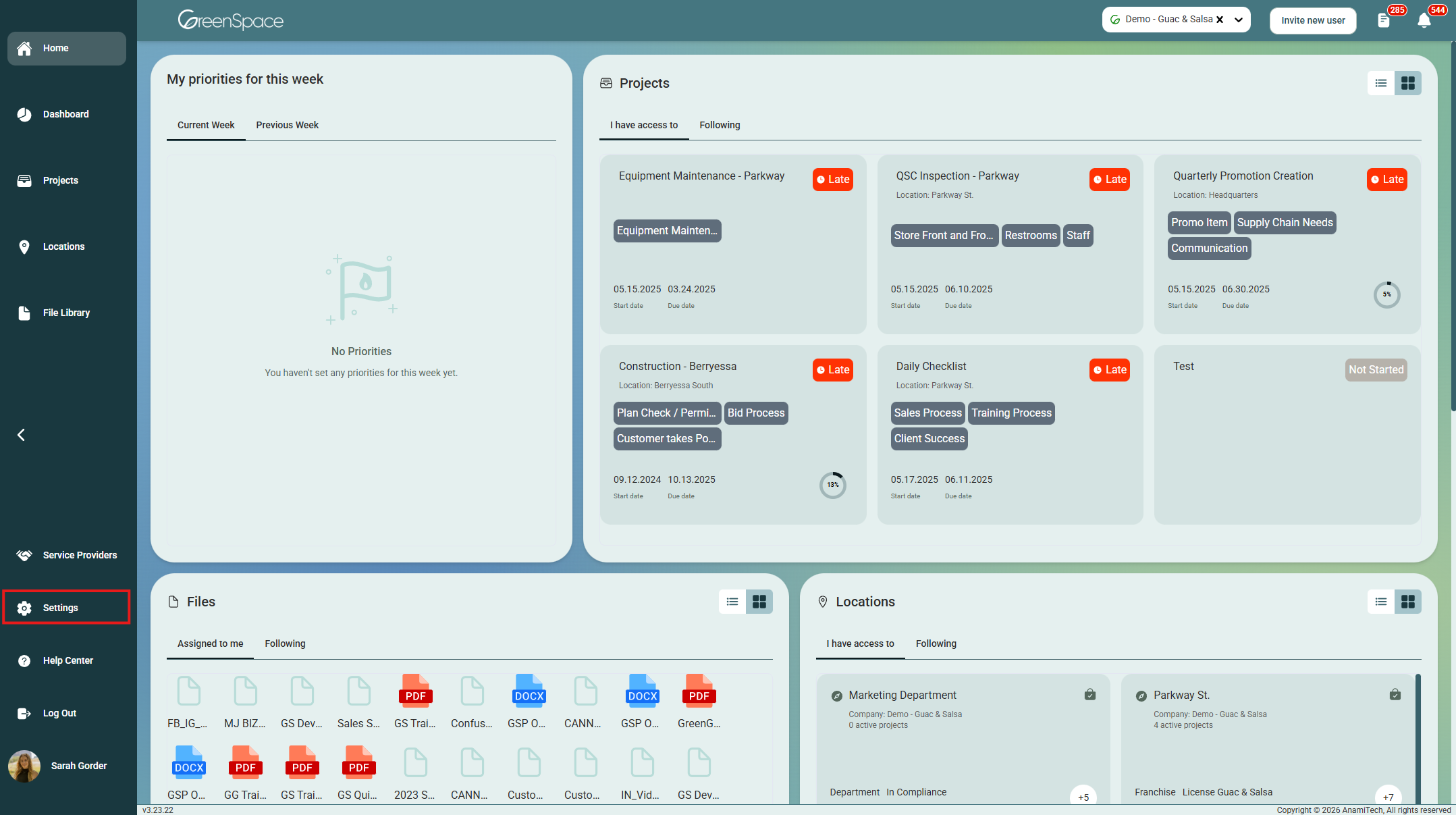
Click Settings on the left side menu.
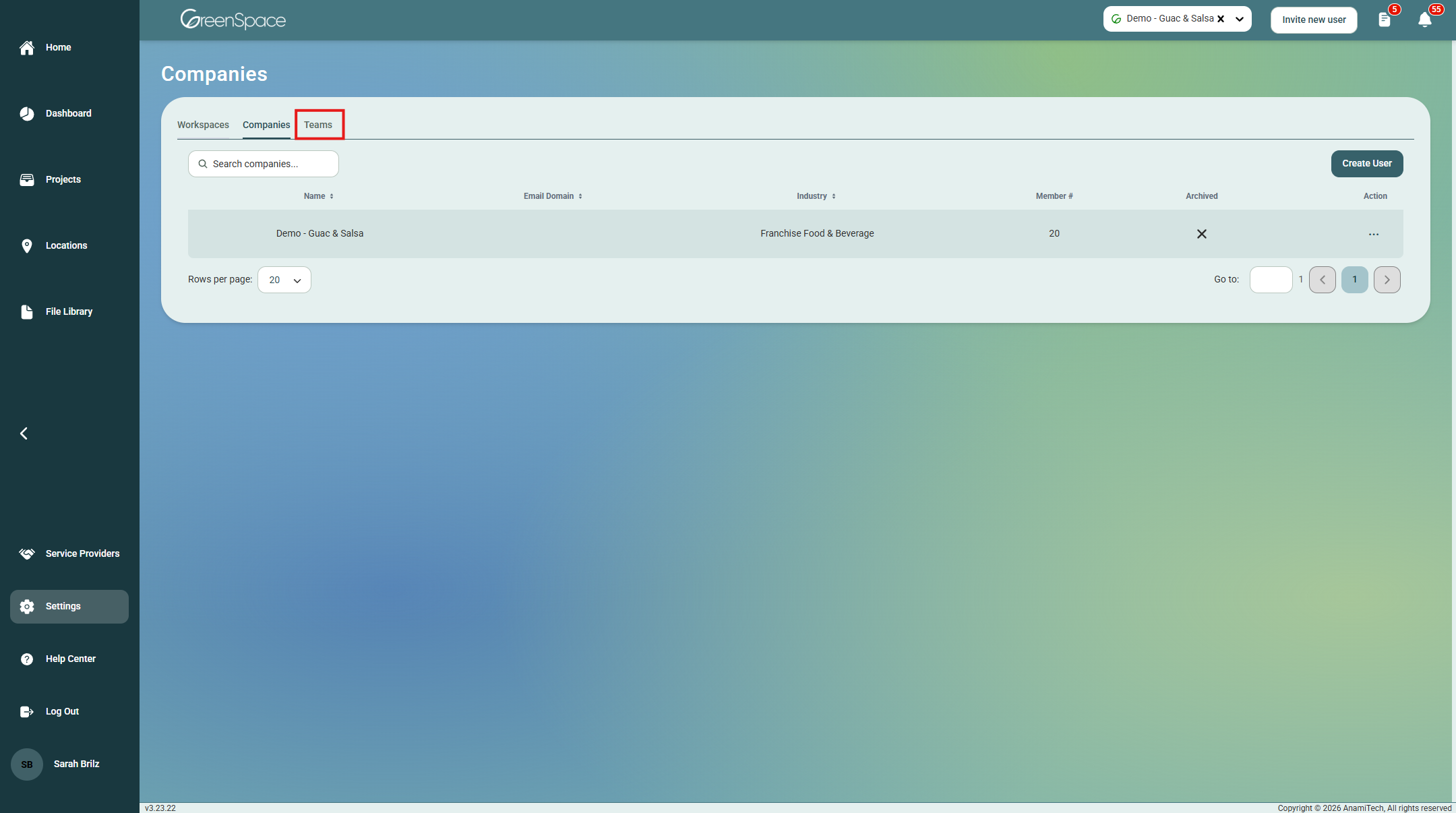
At the top of the Settings page, click the “Teams” tab.
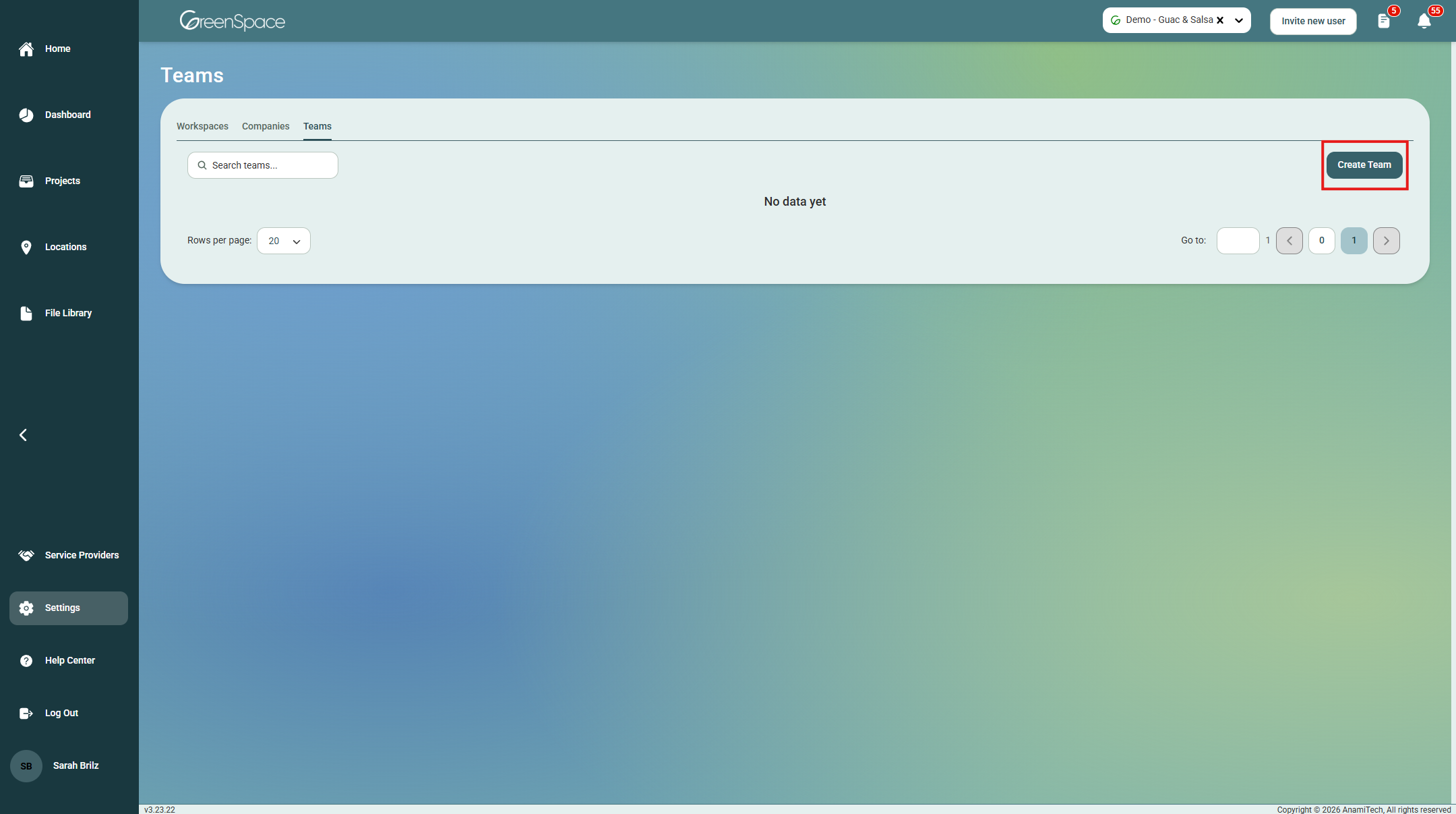
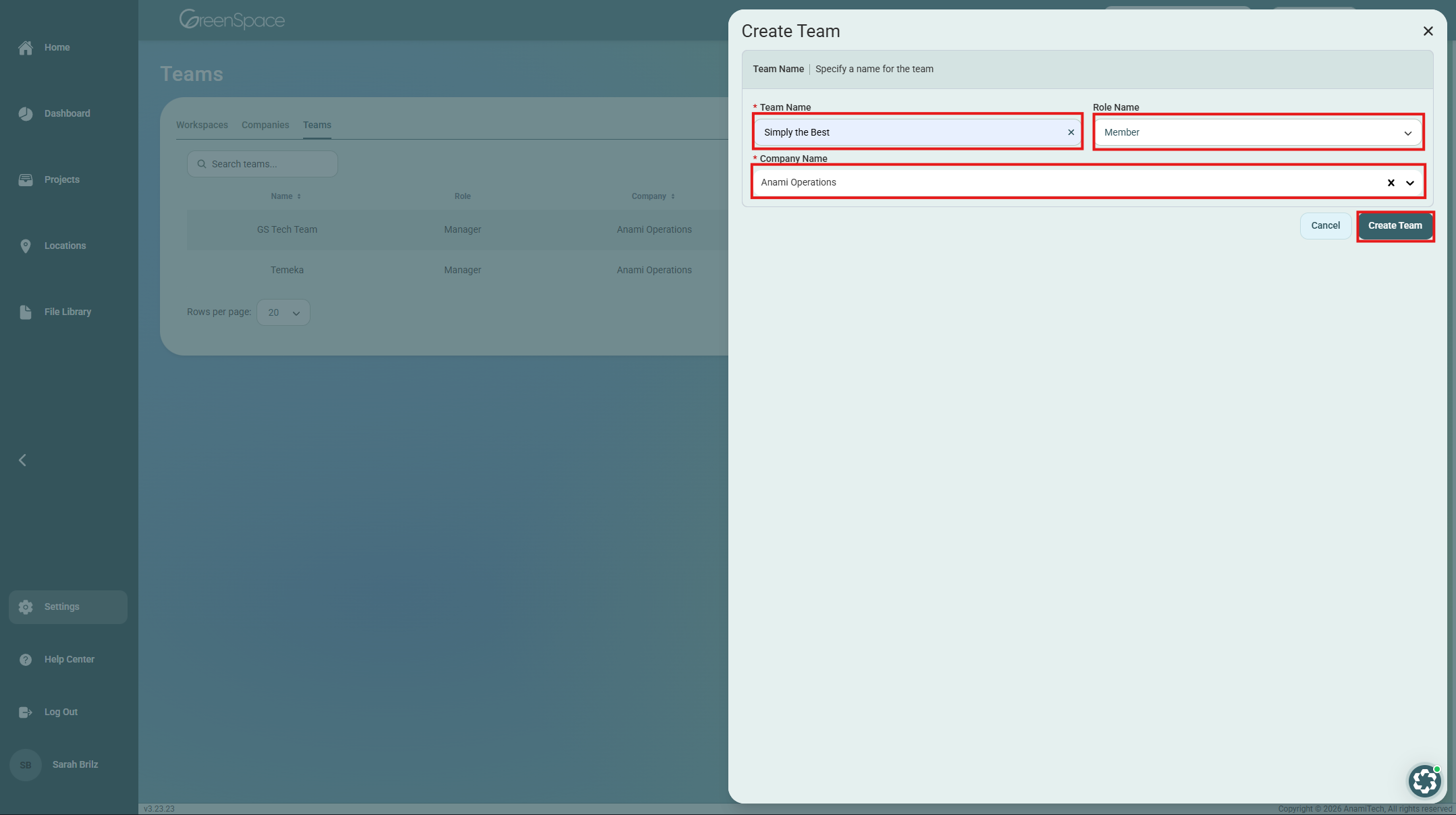
Click the “Create Team” button in the top right corner.
Type in a Team Name, choose a Role for the Team, and save your changes.
Add or Manage Users in a Team
Log into your Admin account and click Settings on the left side menu.
At the top of the Settings page, click the “Teams” tab.
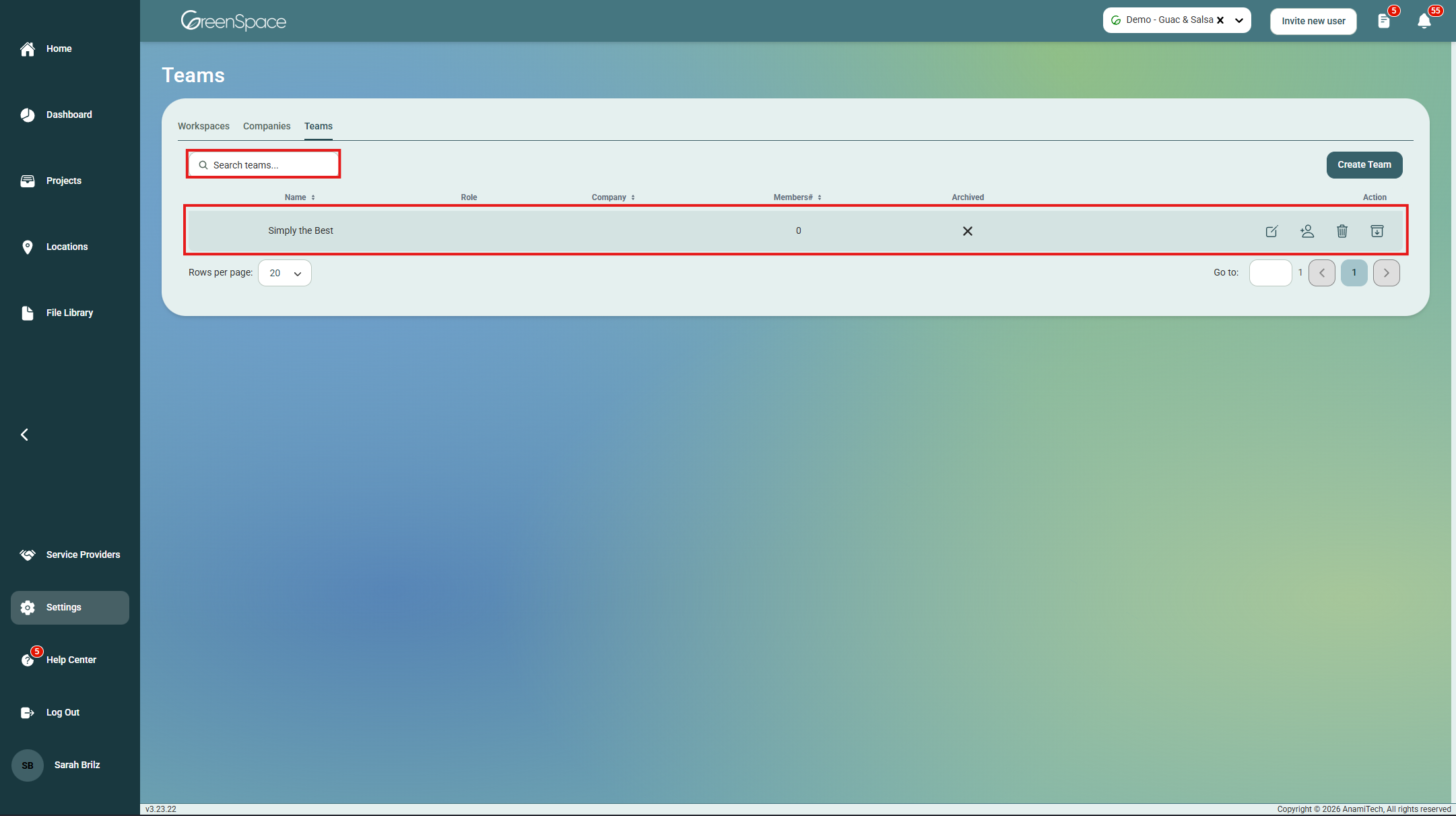
Find the Team in the list or use the search bar.
Add a User
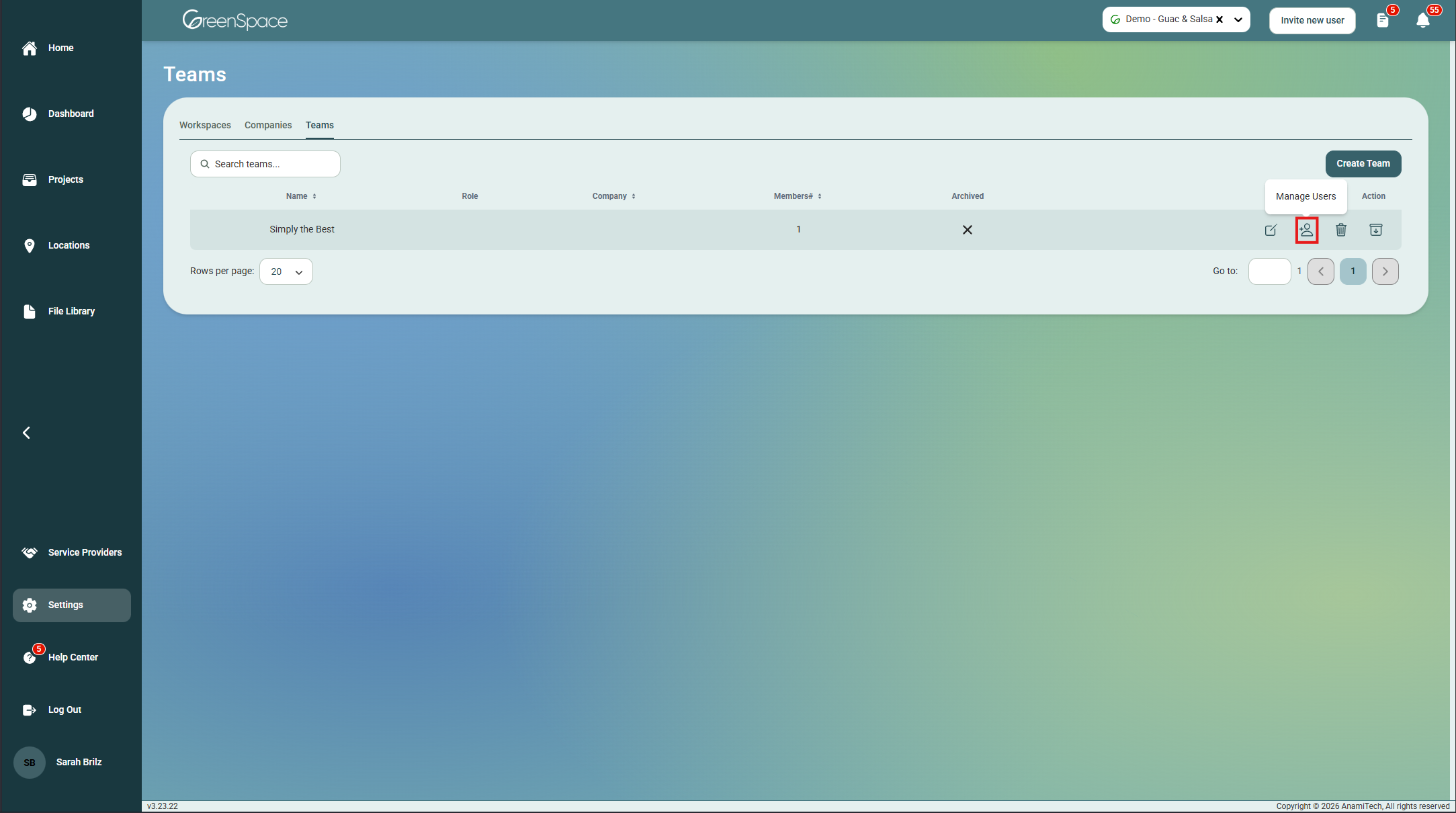
Click the “Manage Users” button (person with a plus sign).
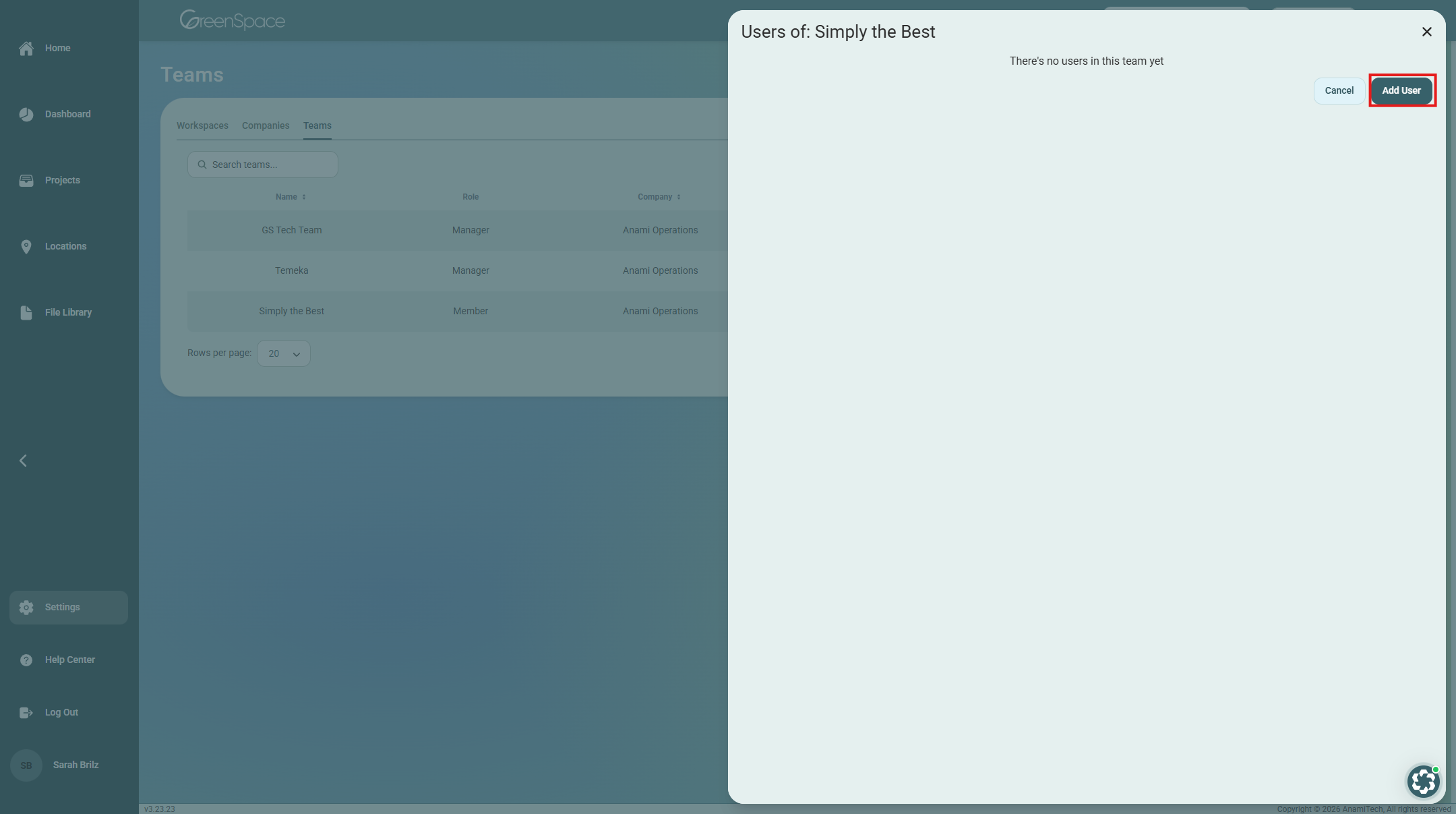
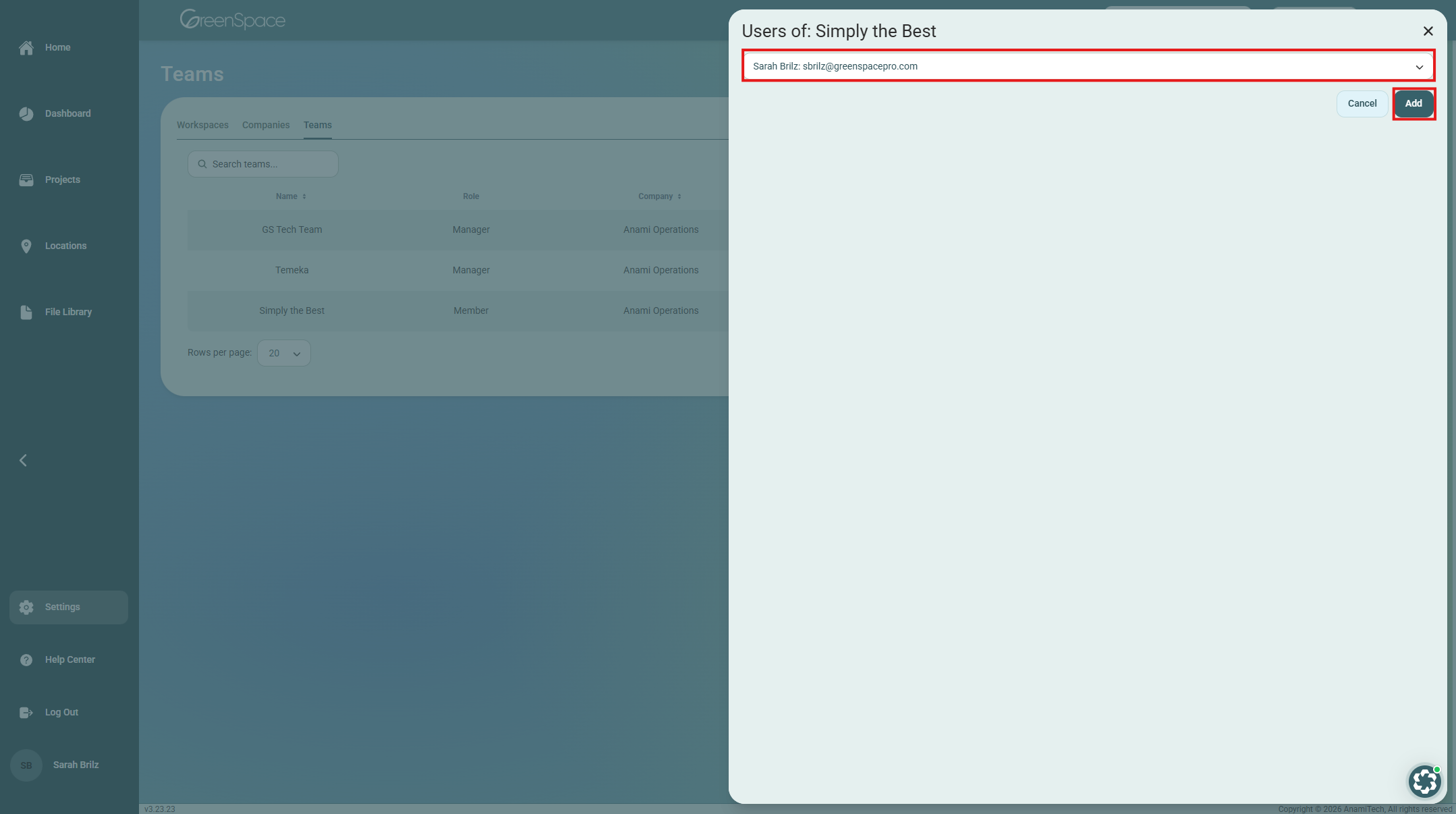
In the pop-up window, click “Add User.”
Choose a user from the drop-down list and click “Add”.
Delete a User
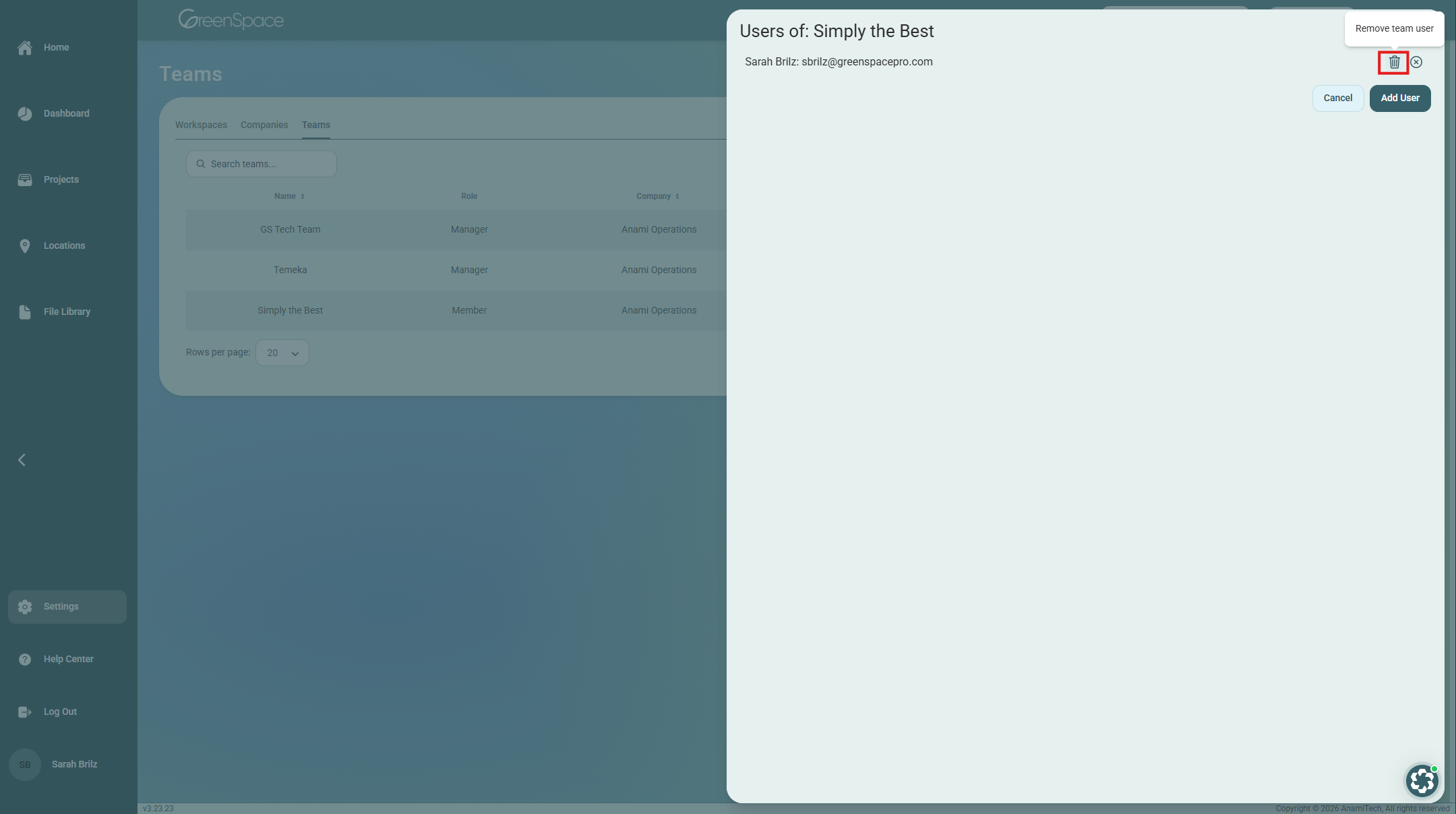
Find the user you would like to delete and click the trash can (Delete) button next to their name. Note: There is no confirmation pop-up. If you delete someone by mistake, just follow the Add a User steps to add them back.
Deactivate a User
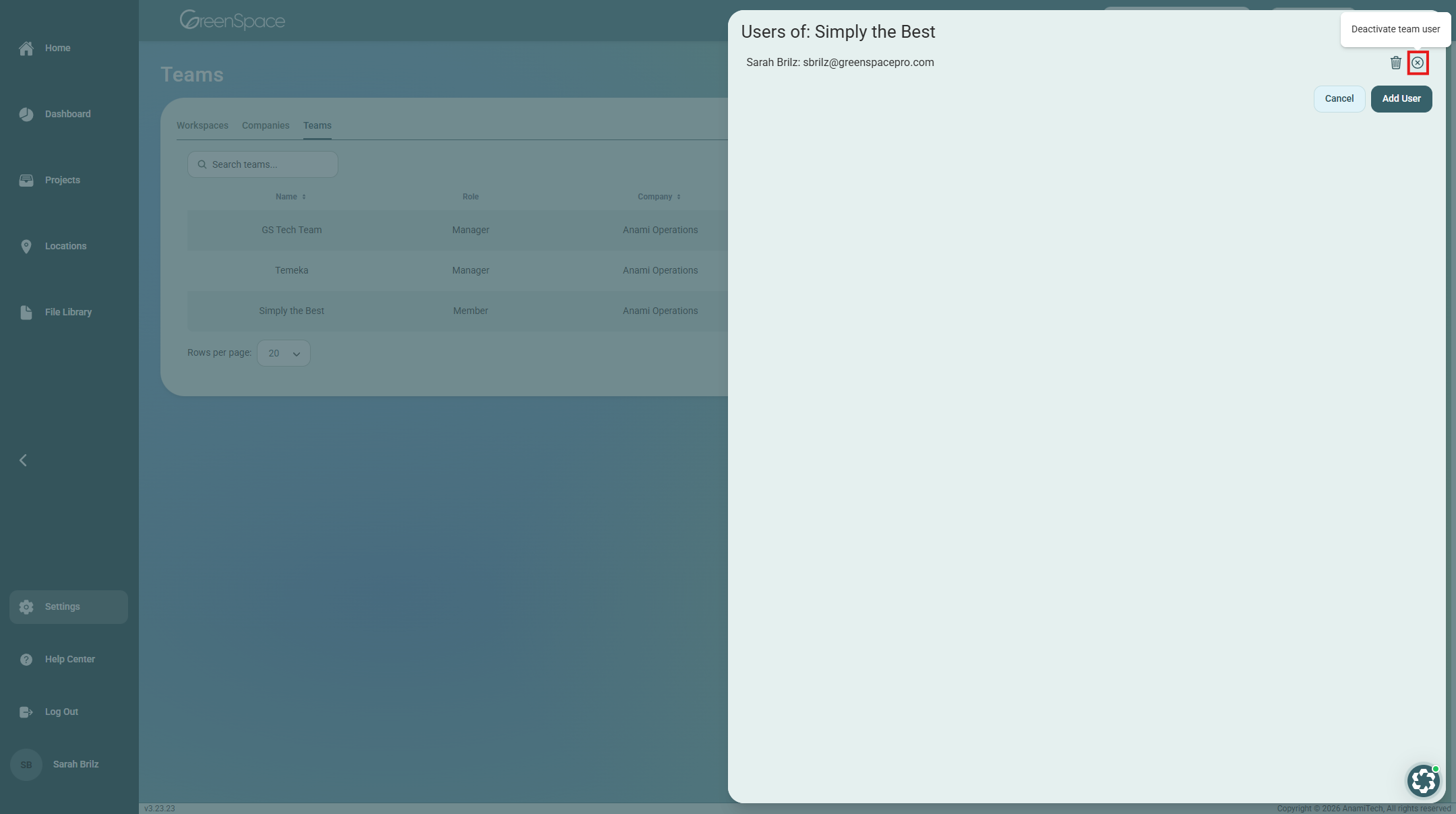
Find the user you would like to deactivate and click the circle with an X (Deactivate Team Member) button. The user’s name will appear crossed out meaning they are no longer active on the Team.
Reactivate a User
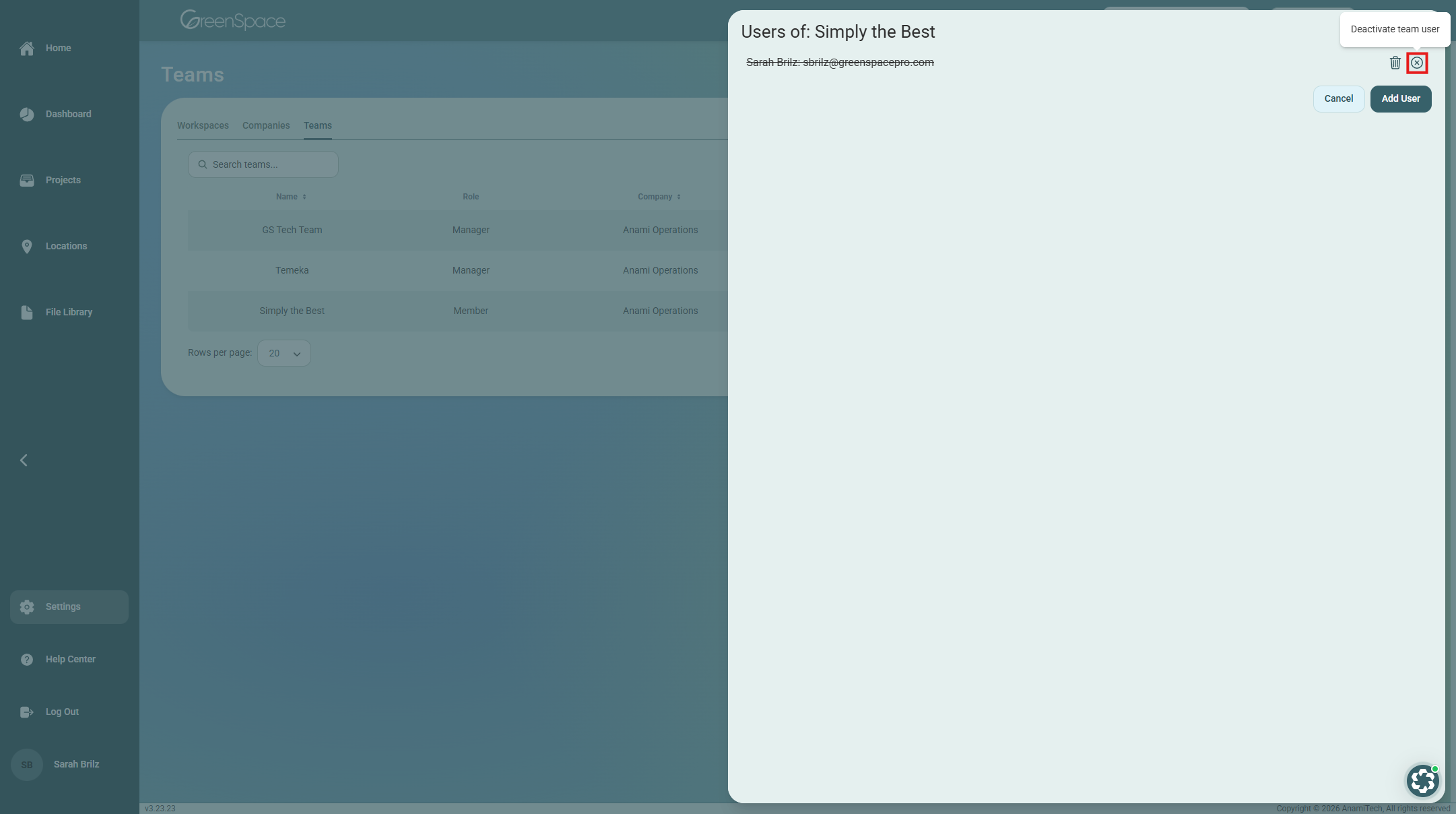
Find the crossed-out user you would like to reactive and click the circle with an X button again. Their name will no longer be crossed out indicating they are active again.
Edit a Team
Log into your Admin account and click Settings on the left side menu.
At the top of the Settings page, click the “Teams” tab.
Find the Team you want to change in the list or utilizing the search bar.
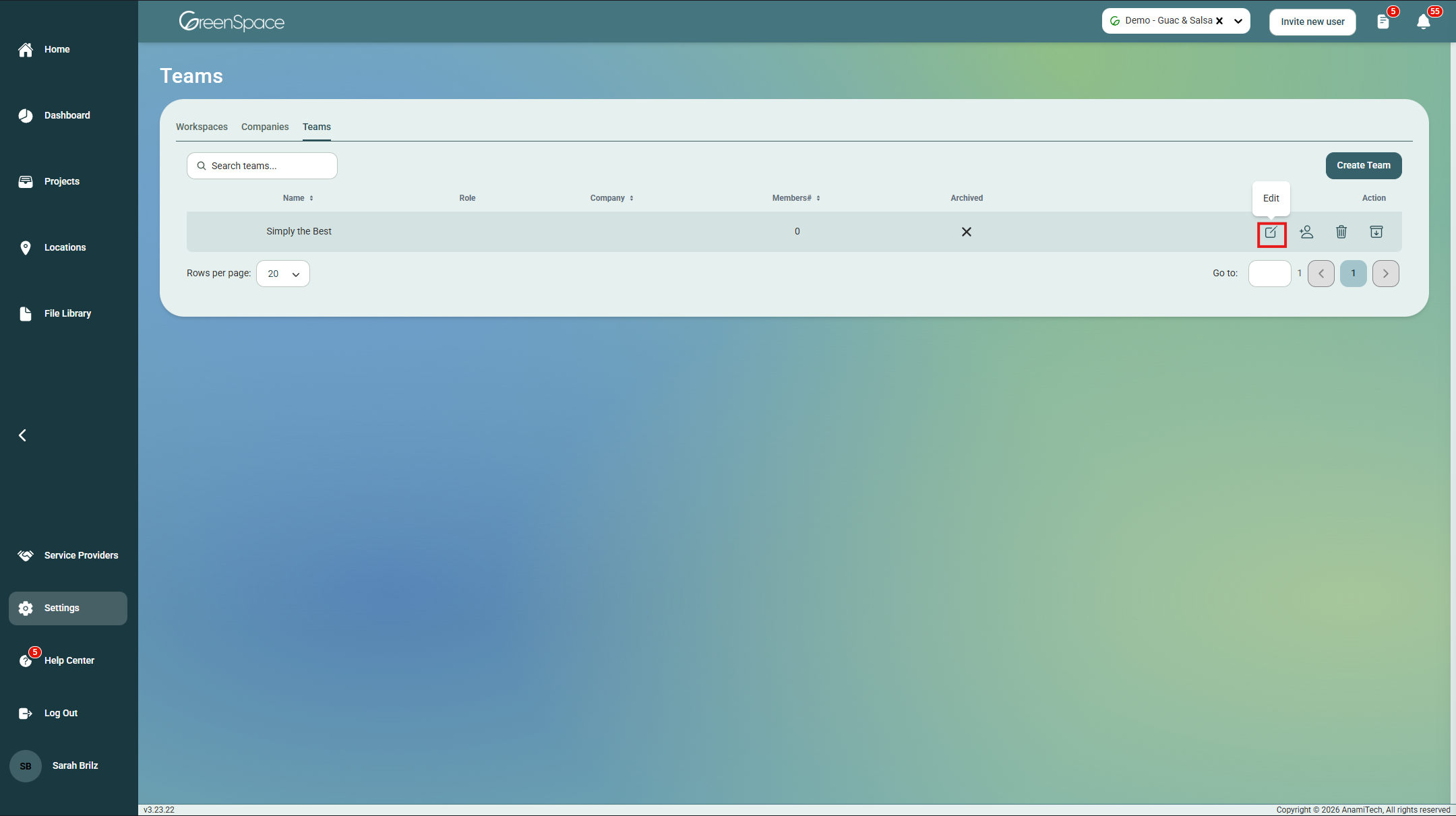
Click the pencil (Edit) button next to the Team.
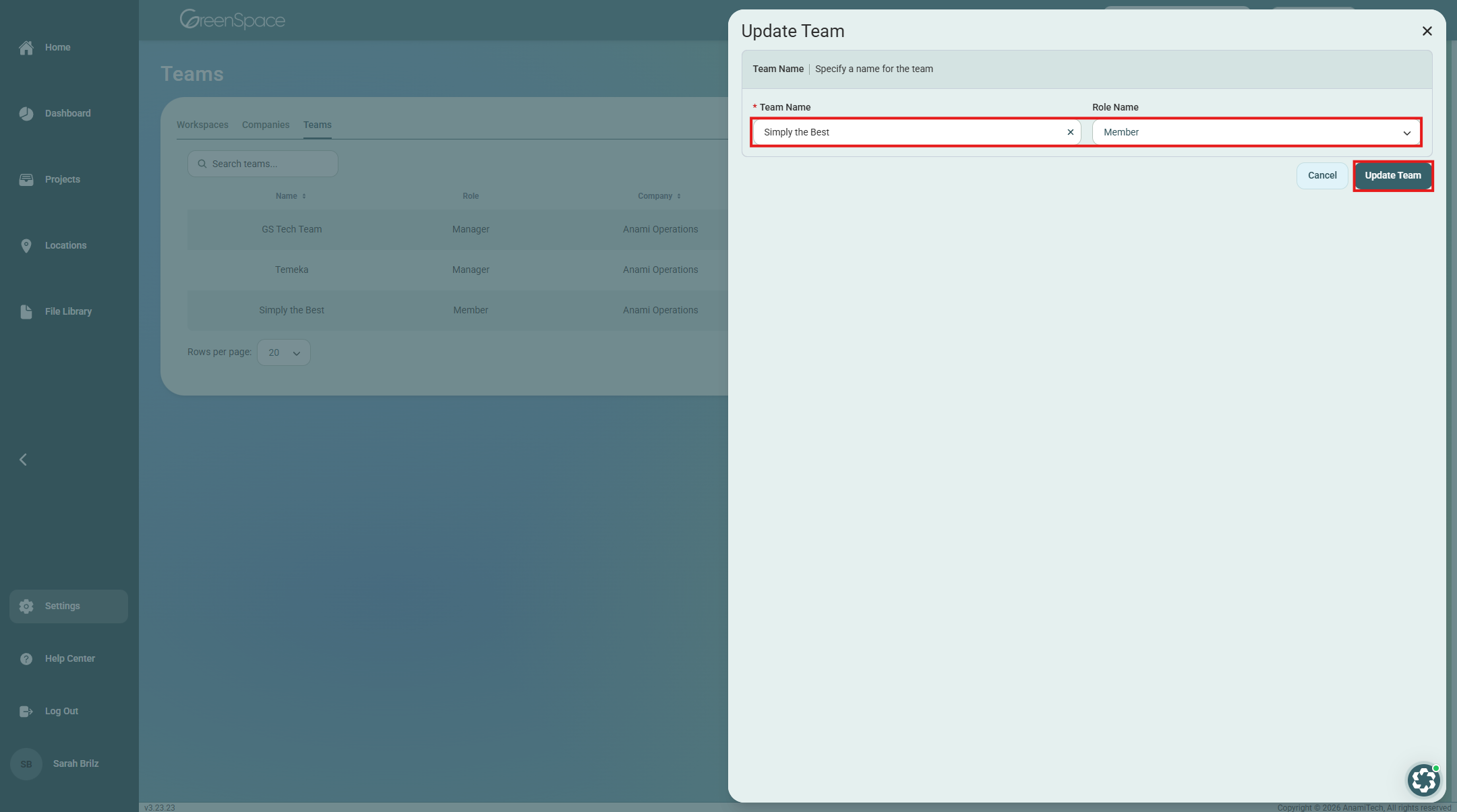
Make your changes and click “Update Team” when finished.
Delete a Team
Warning: This action cannot be undone.
Log into your Admin account and click Settings on the left side menu.
At the top of the Settings page, click the “Teams” tab.
Find the Team you want to delete in the list or utilizing the search bar.
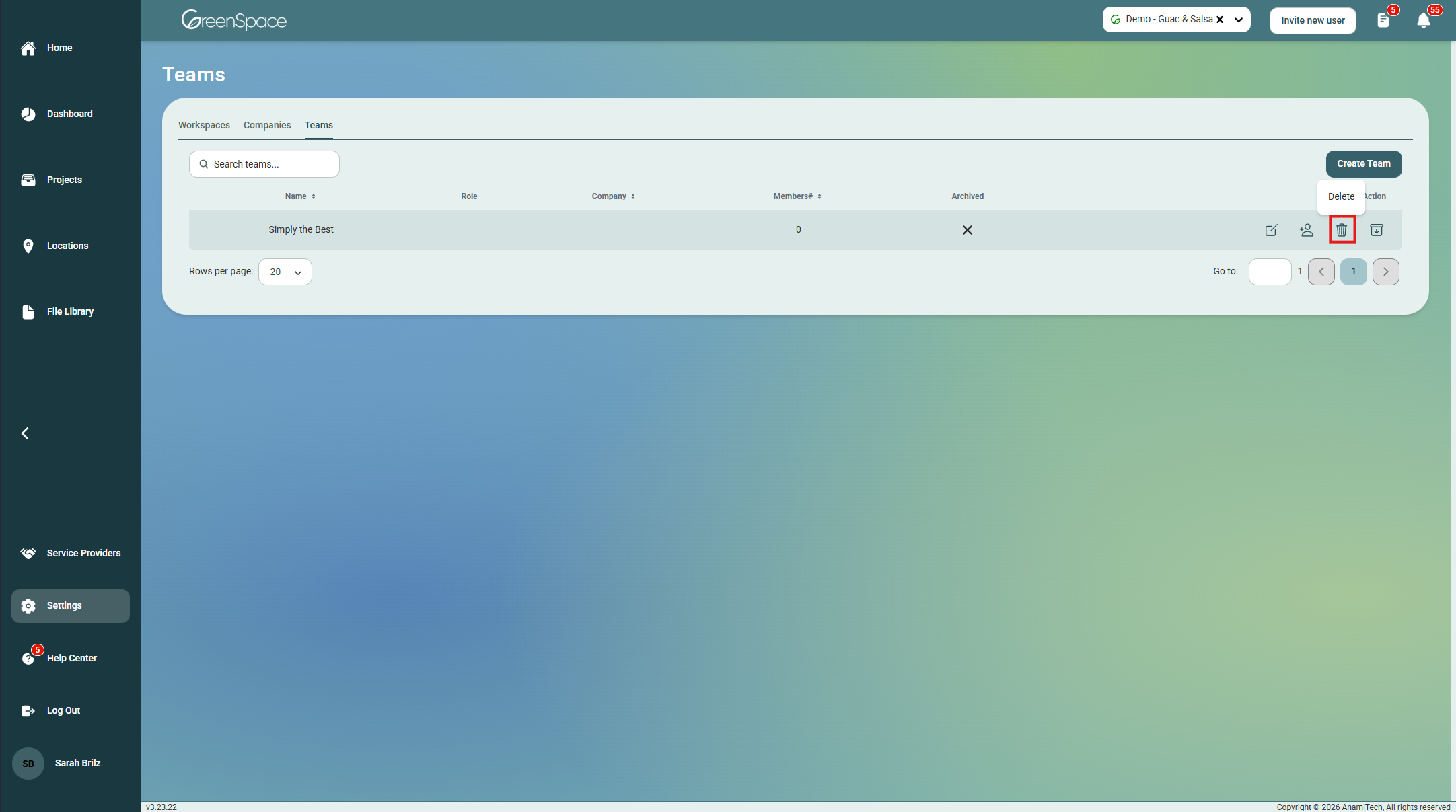
Click the trash can (Delete) button.
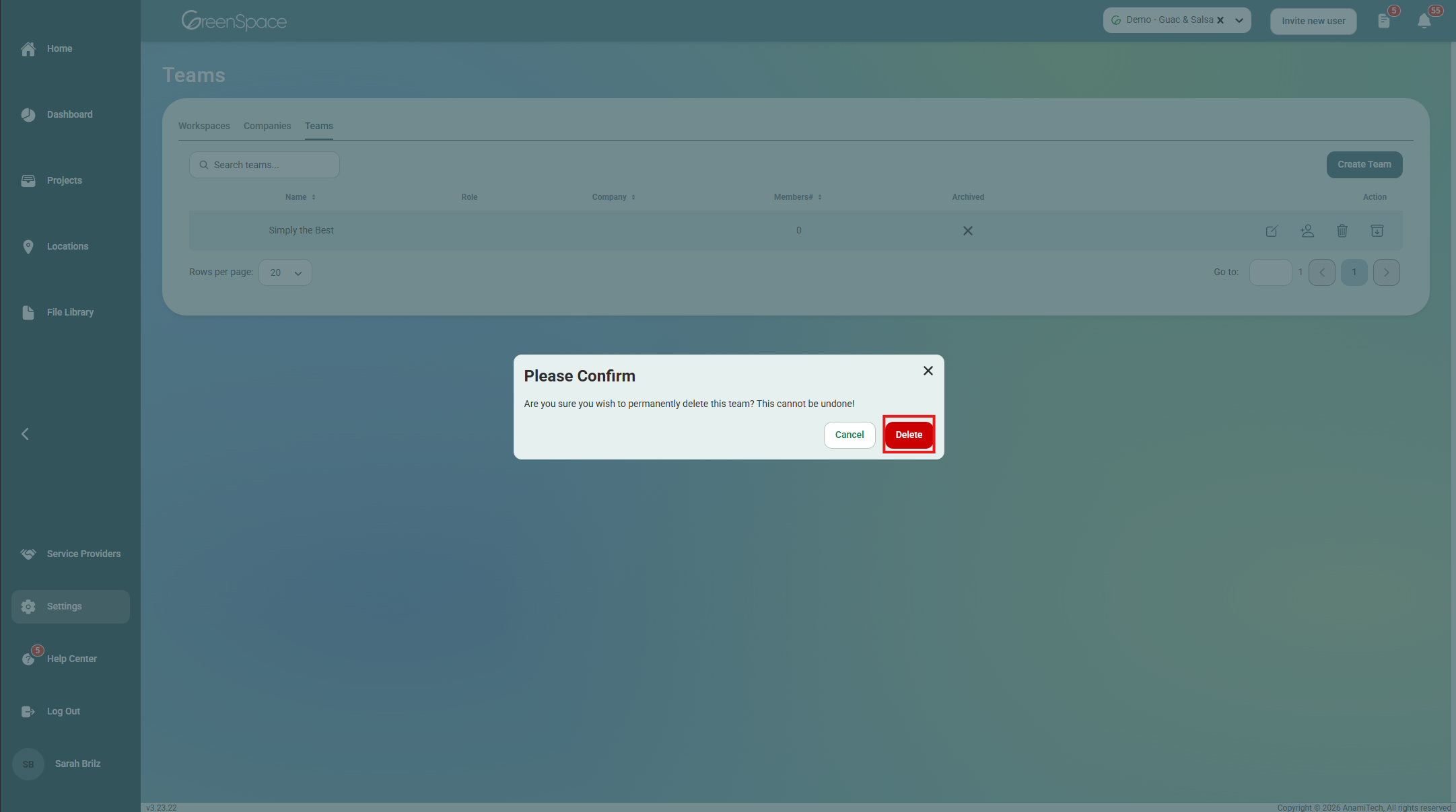
When the confirmation box pops up, click “Delete.” The Team will be permanently removed and cannot be undone.
Archive or Unarchive a Team
Log into your Admin account and click Settings on the left side menu.
At the top of the Settings page, click the “Teams” tab.
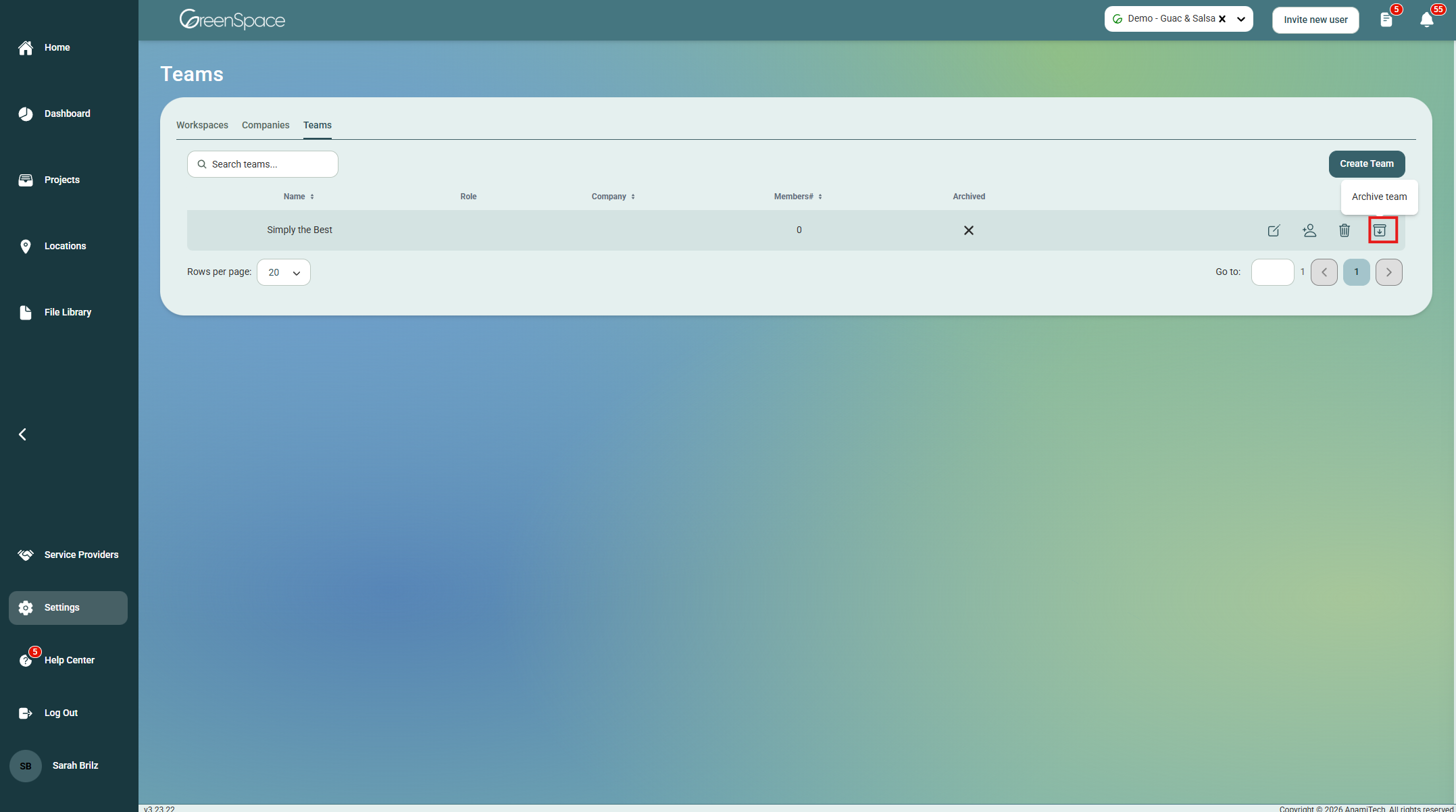
Find the Team you want to un/archive in the list or utilizing the search bar.
Click the box with a down arrow (Un/Archive) button.
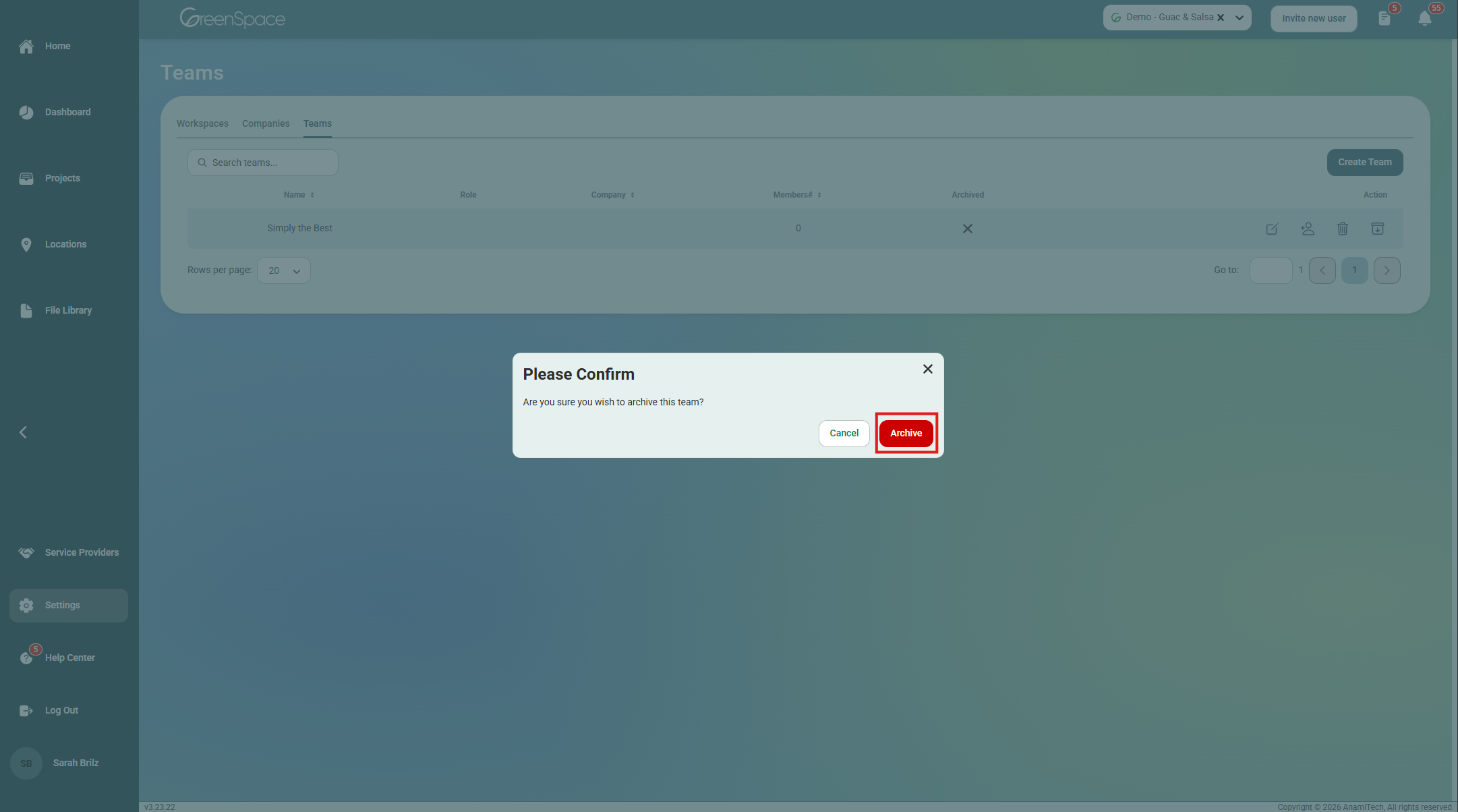
Click “Archive” in the confirmation box.
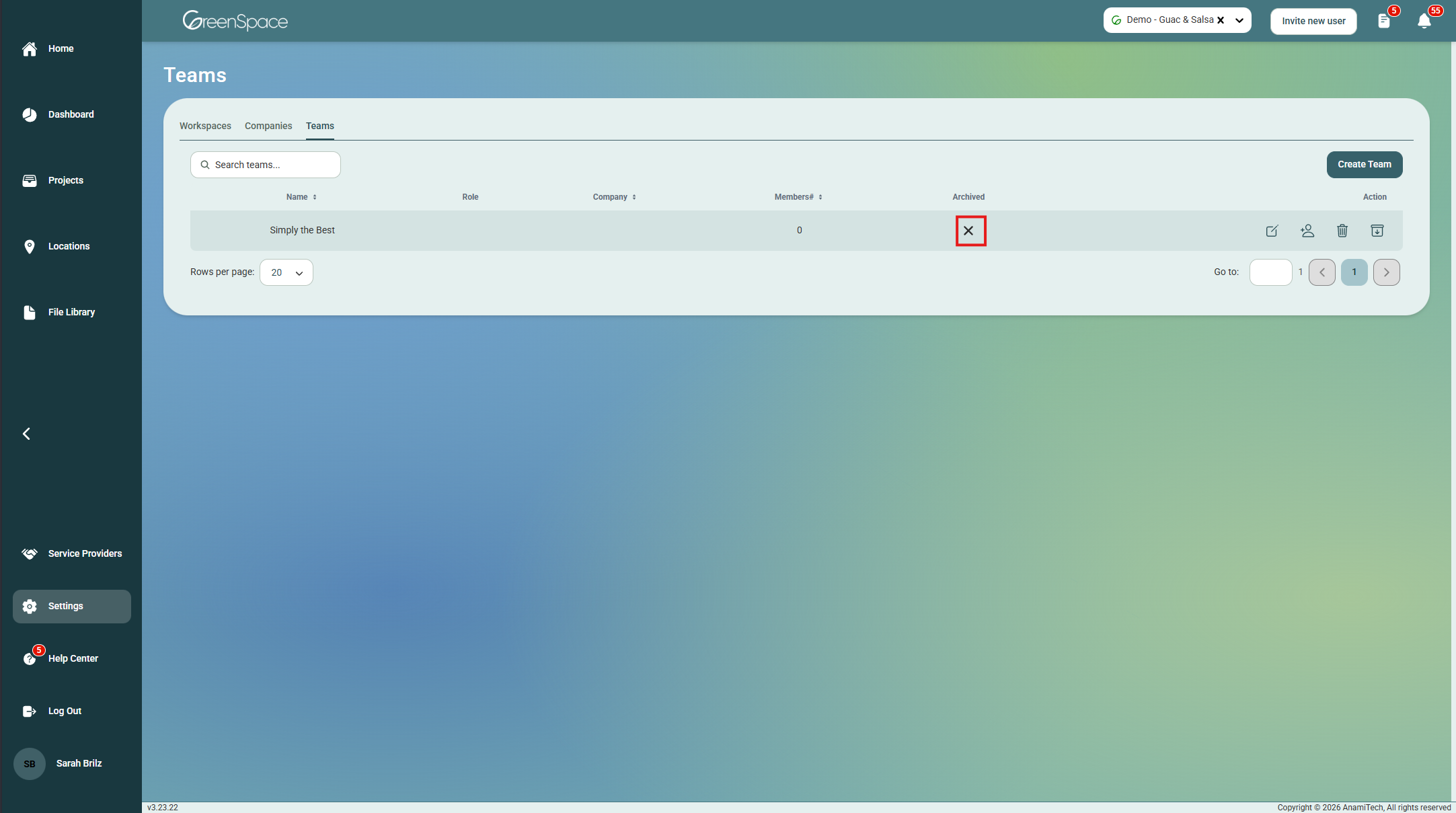
A checkmark under the “Archived” column means the Team is archived.
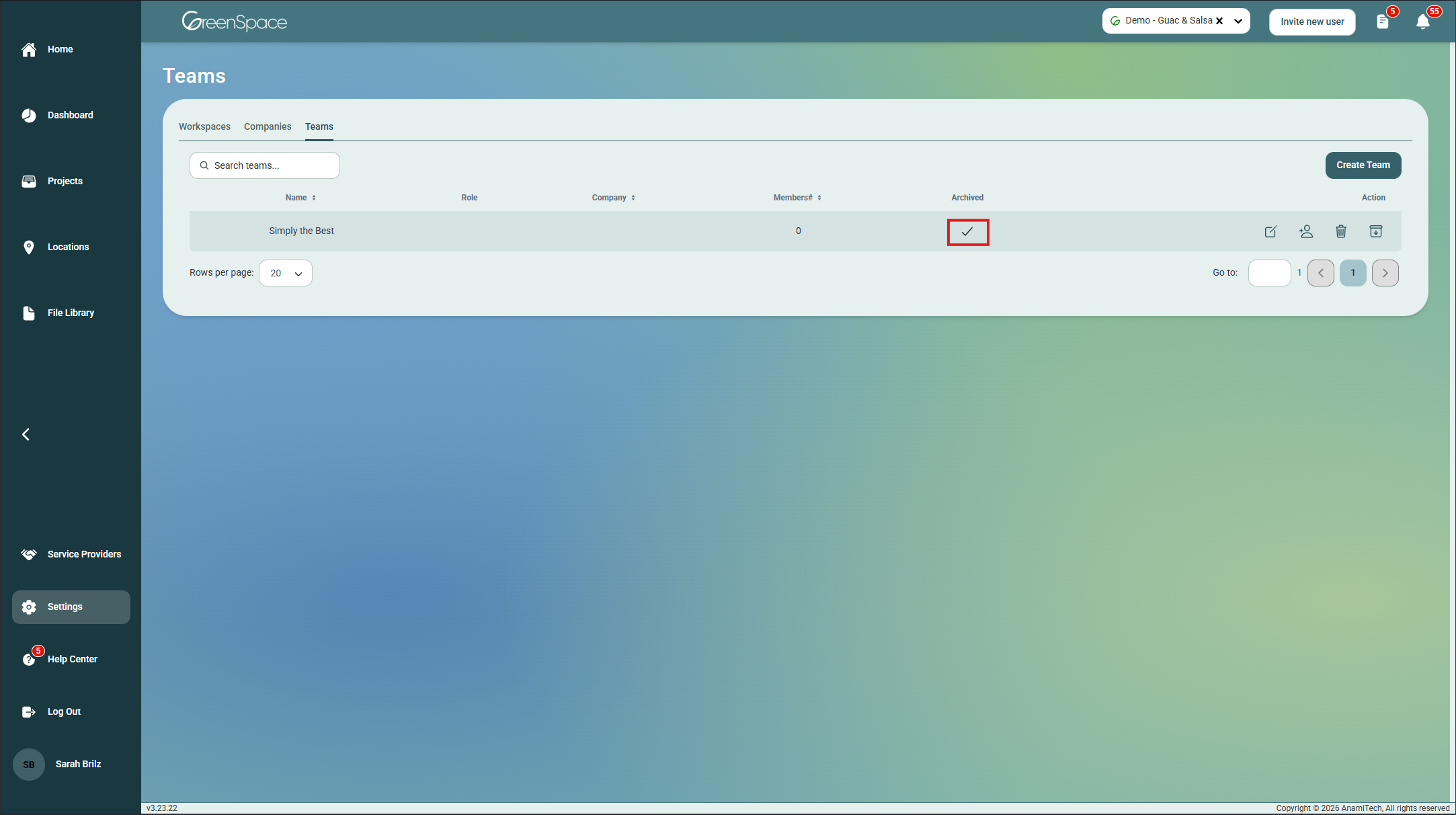
An X means the Team is not archived.